
Introduction
Managing hundreds of research papers, journal articles, books, reports, conference proceedings, and web sources can quickly become overwhelming for researchers. One of the biggest challenges faced by PhD scholars, postgraduate students, and academic researchers is organizing references and generating citations accurately.
Fortunately, citation management software has made this process significantly easier. Among the many available tools, Zotero stands out as one of the most popular, free, and user-friendly reference management solutions.
Whether you are conducting a literature review, writing a thesis, preparing a research paper, or publishing in a Scopus-indexed journal, Zotero can help you collect, organize, cite, and share research materials efficiently.
For Indian scholars pursuing PhD, MPhil, MBA, MA, MTech, MSc, or other research programs, learning Zotero can save hundreds of hours while reducing citation errors and improving research productivity.
In this comprehensive guide, you will learn:
- What Zotero is
- Why researchers use Zotero
- Key features of Zotero
- How to install and set up Zotero
- How to manage references
- How to create citations and bibliographies
- Zotero tips for literature reviews
- Common mistakes to avoid
- Best practices for Indian researchers
What Is Zotero?
Zotero is a free and open-source reference management software designed to help researchers collect, organize, annotate, cite, and share academic resources.
Developed by the Center for History and New Media at George Mason University, Zotero has become one of the most trusted citation management tools used by students, researchers, professors, and academic institutions worldwide.
Zotero helps users:
- Store research papers
- Organize references
- Generate citations automatically
- Create bibliographies
- Manage PDFs
- Collaborate with research teams
- Synchronize references across devices
Instead of manually maintaining hundreds of references in Word documents or spreadsheets, researchers can manage everything within a single platform.
Why Is Zotero Important for Indian Scholars?
Research in India is becoming increasingly publication-oriented. PhD scholars are often required to:
- Publish research papers
- Conduct systematic reviews
- Prepare dissertations
- Submit theses
- Write conference papers
- Publish in Scopus-indexed journals
Managing references manually can lead to:
- Citation errors
- Missing references
- Formatting inconsistencies
- Time wastage
Zotero helps solve these challenges.
Benefits of Using Zotero
Free and Open Source
Unlike many paid reference managers, Zotero is completely free to use.
This makes it particularly useful for students and early-career researchers.
Supports Thousands of Citation Styles
Zotero supports:
- APA 7th Edition
- Harvard Style
- MLA
- Chicago
- IEEE
- Vancouver
- AMA
Researchers can switch citation styles instantly.
Easy Citation Generation
Zotero automatically inserts citations while writing.
Literature Review Management
Store and organize hundreds of journal articles efficiently.
PDF Annotation
Researchers can highlight, comment, and annotate PDFs directly within Zotero.
Cloud Synchronization
References remain accessible across multiple devices.
Collaboration Features
Research groups can share libraries and references.
Key Features of Zotero
Understanding Zotero's major features helps researchers maximize its potential.
Reference Collection
Zotero captures:
- Journal articles
- Books
- Websites
- Reports
- Conference papers
- Theses
- Patents
with a single click.
PDF Storage
Users can save full-text PDFs directly into Zotero.
Citation Management
Automatically generates:
- In-text citations
- Footnotes
- Bibliographies
- Reference lists
Organization Tools
Researchers can organize materials using:
- Collections
- Tags
- Notes
- Folders
Search Functionality
Quickly locate references using keywords.
Duplicate Detection
Helps identify and merge duplicate records.
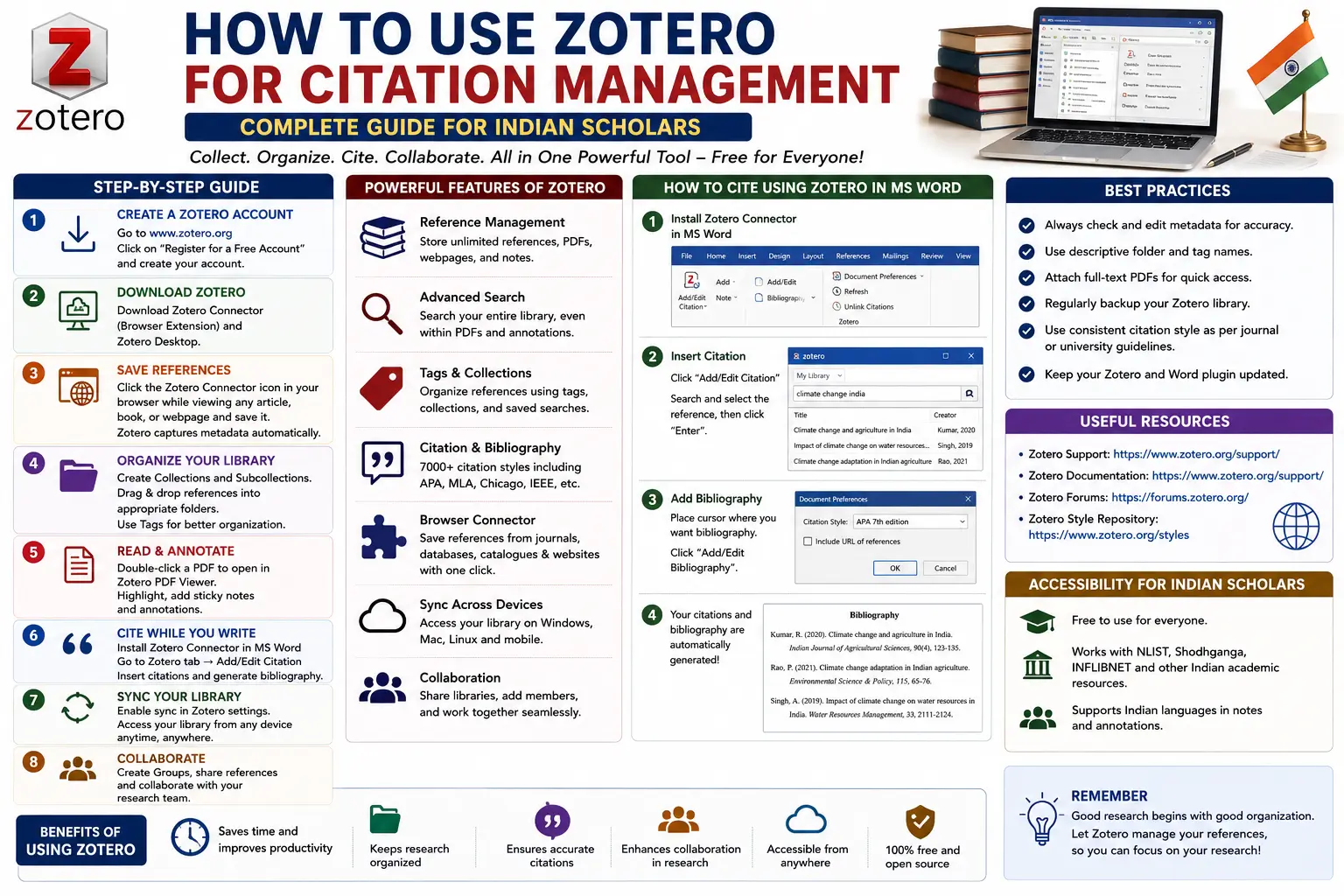
How to Install Zotero
Installing Zotero takes only a few minutes.
Step 1: Download Zotero
Visit the official Zotero website and download:
- Windows version
- Mac version
- Linux version
Step 2: Install Zotero
Follow installation instructions.
After installation, launch Zotero.
Step 3: Create a Zotero Account
A Zotero account allows:
- Cloud synchronization
- Online backup
- Collaboration
Register using your email address.
Step 4: Install Browser Connector
The Zotero Connector works with:
- Chrome
- Firefox
- Edge
- Safari
This extension enables one-click reference capture.
Step 5: Install Word Plugin
The Zotero Word Plugin allows direct citation insertion while writing.
The plugin is usually installed automatically.
Understanding the Zotero Interface
The Zotero interface consists of three panels.
Left Panel
Contains:
- Library
- Collections
- Group Libraries
Think of collections as folders.
Middle Panel
Displays saved references.
Examples:
- Journal articles
- Books
- Reports
Right Panel
Shows detailed metadata.
Including:
- Author names
- Publication year
- Journal title
- DOI
- Keywords
How to Add References to Zotero
There are several methods.
Method 1: Using the Browser Connector
This is the easiest option.
Example
While browsing a journal article on:
- Scopus
- Google Scholar
- PubMed
- ScienceDirect
Click the Zotero icon.
Zotero automatically imports:
- Author
- Title
- Journal
- DOI
- Abstract
and often downloads the PDF.
Method 2: Add by DOI
If you know the DOI:
- Click the magic wand icon.
- Enter DOI.
- Zotero retrieves metadata automatically.
Example:
10.1000/xyz123
Method 3: Add PDF Files
Drag and drop PDFs into Zotero.
Zotero often extracts metadata automatically.
Method 4: Manual Entry
For sources unavailable online:
- Click "New Item."
- Select source type.
- Enter details manually.
Organizing References in Zotero
A well-organized library improves research efficiency.
Create Collections
Example:
PhD Thesis
- Chapter 1
- Chapter 2
- Literature Review
Use Tags
Examples:
- AI
- Healthcare
- Education
- Systematic Review
Tags improve searchability.
Add Notes
Researchers can attach notes summarizing articles.
Example:
"Useful for methodology chapter."
Using Zotero for Literature Reviews
Literature reviews often involve hundreds of sources.
Zotero simplifies the process.
Store Articles
Save all relevant studies in one location.
Categorize Studies
Create folders such as:
- Theoretical Framework
- Empirical Studies
- Research Gaps
Add Critical Notes
Record:
- Findings
- Limitations
- Future research suggestions
Search Instantly
Locate articles using keywords, authors, or tags.
How to Insert Citations in Microsoft Word
One of Zotero's most powerful features is automatic citation insertion.
Step 1: Open Word
Ensure the Zotero tab appears.
Step 2: Click "Add Citation"
Select citation style.
Examples:
- APA
- Harvard
- IEEE
Step 3: Search Source
Type:
- Author name
- Title
- Keyword
Select the source.
Step 4: Insert Citation
Zotero automatically formats the citation.
Example:
(Sharma, 2024)
or
[5]
depending on citation style.
How to Generate a Bibliography Automatically
After inserting citations:
- Place cursor where bibliography should appear.
- Click "Add Bibliography."
Zotero instantly generates the reference list.
This feature can save hours during thesis writing.
Switching Citation Styles
Many researchers need to change citation formats.
Example:
- APA → Harvard
- Harvard → IEEE
- IEEE → Vancouver
With Zotero:
- Open Document Preferences.
- Select new style.
- Update document.
The entire document changes automatically.
Using Zotero for Systematic Reviews
Systematic reviews often involve hundreds of studies.
Zotero helps researchers:
- Organize search results
- Remove duplicates
- Categorize studies
- Store PDFs
- Manage screening notes
This makes the review process more efficient.
Zotero Collaboration Features
Research teams can create shared libraries.
Benefits:
- Shared references
- Centralized storage
- Team collaboration
- Real-time synchronization
Ideal for co-authored research papers.
Common Zotero Mistakes to Avoid
Not Backing Up Libraries
Always enable synchronization.
Ignoring Metadata Errors
Verify imported details.
Sometimes titles or author names may be incorrect.
Creating Duplicate Records
Regularly use duplicate detection.
Poor Organization
Use collections and tags consistently.
Relying Completely on Automation
Always review generated citations before submission.
Best Practices for Indian Scholars
Start Using Zotero Early
Do not wait until thesis submission.
Organize by Research Topic
Create collections based on themes.
Verify Metadata
Check every imported reference.
Add Notes Consistently
Summarize articles immediately after reading.
Use Cloud Sync
Protect your research library.
Learn Citation Styles
Understand APA, Harvard, IEEE, and Vancouver formats.
When Should You Use Zotero?
Zotero is useful for:
- PhD thesis writing
- Dissertation preparation
- Journal article publication
- Literature reviews
- Systematic reviews
- Conference papers
- Research projects
- Academic assignments
Any project involving multiple references can benefit from Zotero.
Future of Citation Management with Zotero
As academic publishing becomes increasingly digital, citation management tools are becoming essential research companions.
Modern versions of Zotero now support:
- Advanced PDF annotation
- Better collaboration
- Cloud synchronization
- AI-assisted metadata management
- Improved literature review workflows
Researchers who learn Zotero today will be better prepared for future academic and professional research environments.
Conclusion
Zotero has become one of the most powerful and user-friendly citation management tools available to researchers. Its ability to collect references, organize literature, manage PDFs, generate citations, and create bibliographies makes it an invaluable resource for PhD scholars, postgraduate students, and academic researchers.
For Indian scholars working on theses, dissertations, systematic reviews, and journal publications, Zotero can dramatically reduce the time spent managing references while improving accuracy and research productivity. By learning how to organize references, use collections and tags, insert citations automatically, and collaborate effectively, researchers can focus more on analysis and writing rather than formatting references.
Mastering Zotero is not just about citation management—it is about developing a more efficient, organized, and professional research workflow that supports academic success and publication excellence.
Website: www.thesislikho.com
Call/WhatsApp: +91 96438 02216